Coffee Decky plugin
The free Coffee, made into a Decky plugin for the Steam Deck — browse games, log in to cloud drives, download and install automatically, all in Game Mode.
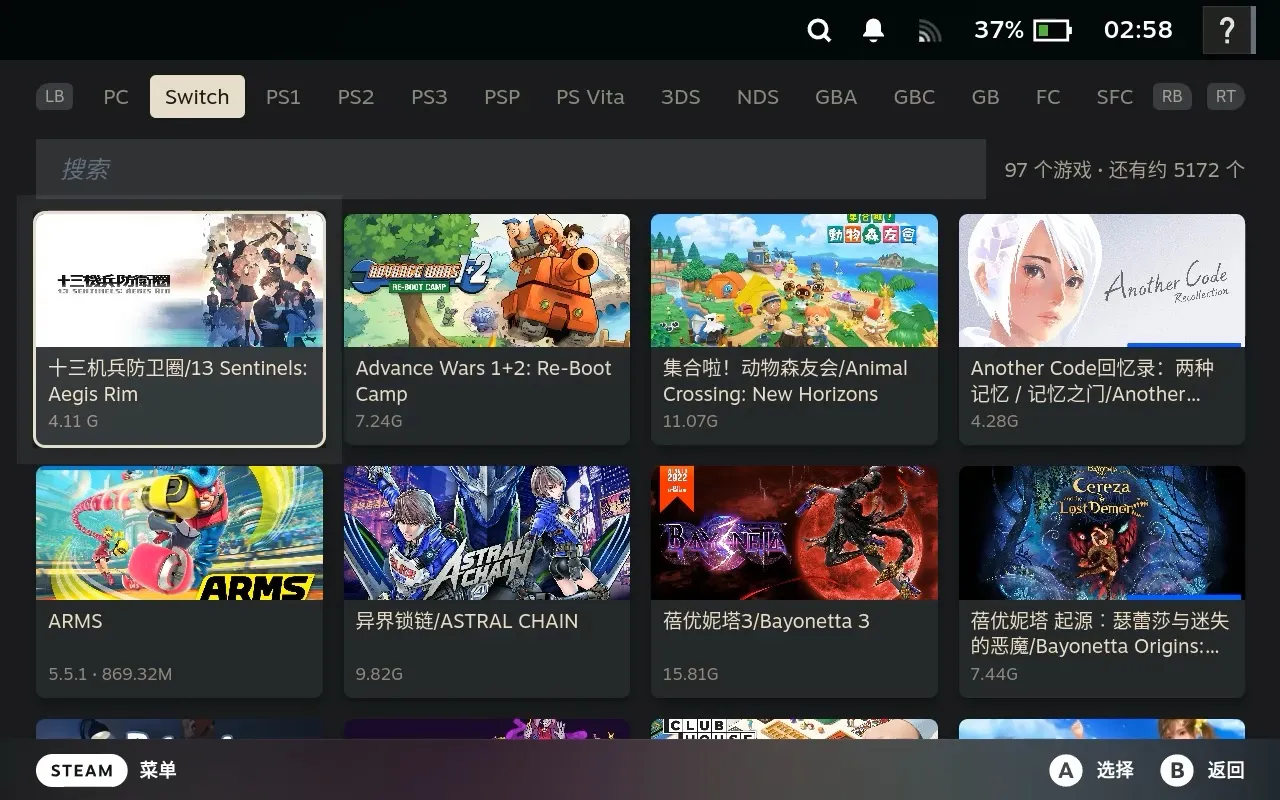
The Coffee Decky plugin is the Steam Deck version of the free Coffee edition. It runs in Decky Loader under the name Coffee. It's a lean game downloader: a game list with covers, cloud drive logins, downloads and automatic installs. Launching games is left to EmuDeck / ES-DE or Steam itself; for the full library, covers and scraping, use Tea's Steam Deck edition. You can have both installed.
#Getting and installing it
The plugin's zip file is in the description of Analogue's B站 (bilibili) videos.
- Install Decky Loader on your Steam Deck first.
- Put
coffee-decky-<version>.zipon the Deck (in~/Downloads, for example); no need to unzip it. - Press … to open the Quick Access menu, go to Decky's settings (the gear) and turn on Developer mode.
- On the Developer page, choose Install Plugin From ZIP File and pick the zip.
- Once installed, Coffee appears in the Decky list in the Quick Access menu.
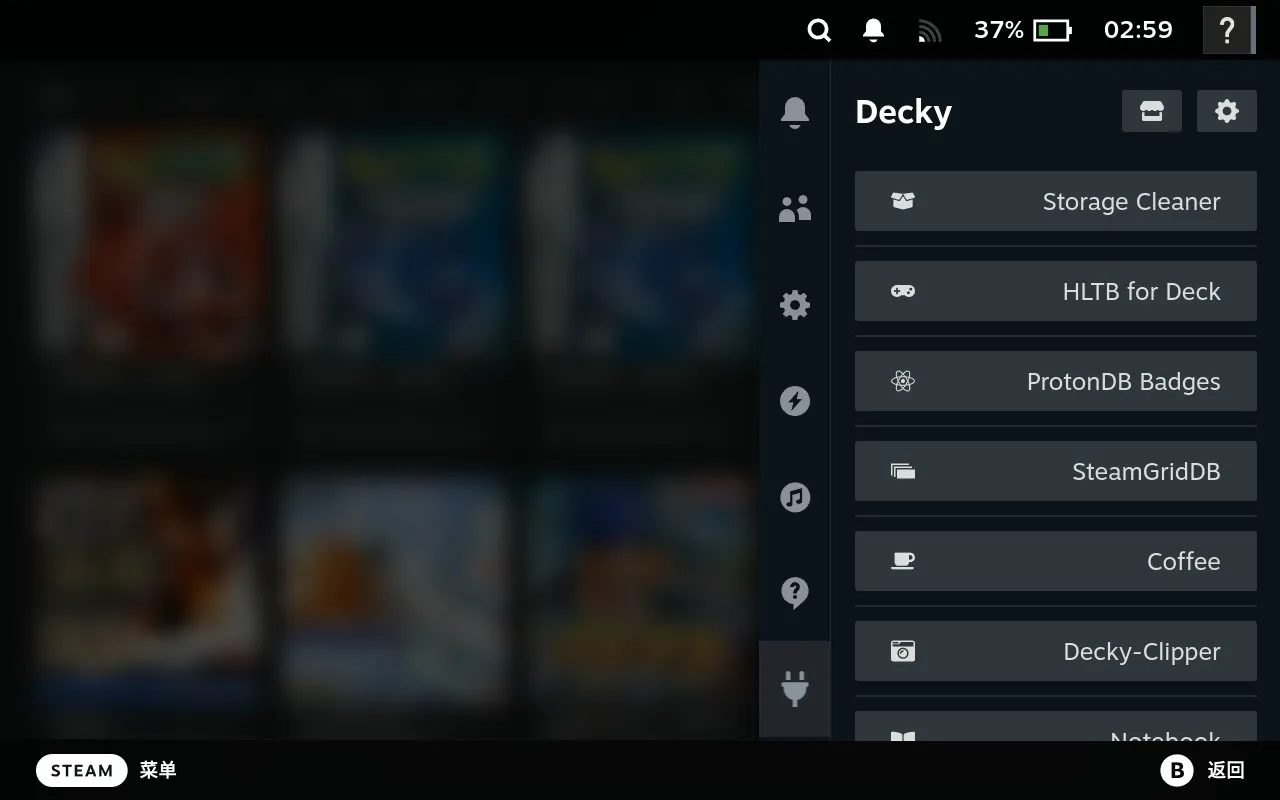
To update, install the new zip the same way; your logins and settings are kept.
#The panel
Tap Coffee in the Decky list to open its panel. The panel has three tabs; switch with LB / RB:
| Tab | Contents |
|---|---|
| Library | Open the games; logins for 天翼云盘 (China Telecom Cloud), 百度网盘 (Baidu Netdisk) and 夸克网盘 (Quark) |
| Settings | ROM folder, PC games folder, download folder, the Keep archives switch |
| Downloads | Download progress: Pause, Resume, Retry, Clear record, Clear finished |
#Logging in to a cloud drive
- On the Library tab, tap the cloud drive you want to log in to.
- Scan the code with the matching phone app (the 天翼云盘 app, the 百度网盘 app or the 夸克 app) and confirm on your phone.
- If the QR code expires, tap New QR code.
If Tea is installed on the Deck and already logged in to the same cloud drive, the panel gives you two choices: Use Tea's login (no need to scan again, and it follows along when Tea logs in again) or Log in with another account. Logging out in Coffee doesn't affect Tea.
Tip: 天翼云盘 downloads each file over 16 connections at once; 百度网盘 SVIP and 夸克 members over 8; anything else over 1. After a pause or a dropped connection, downloads pick up where they left off.
#Folders
Default locations:
| Folder | Default |
|---|---|
| ROM folder | EmuDeck's ~/Emulation/roms (the one on the SD card if EmuDeck is installed there) |
| PC games folder | ~/Games/Freedeck |
| Download folder | ~/Downloads/FreedeckCoffee |
With Tea installed, tap Use Tea's folders to use the same folders as Tea. Default folders goes back to the defaults above.
#Game library
In the panel, tap Open the games to open the full-screen game list.
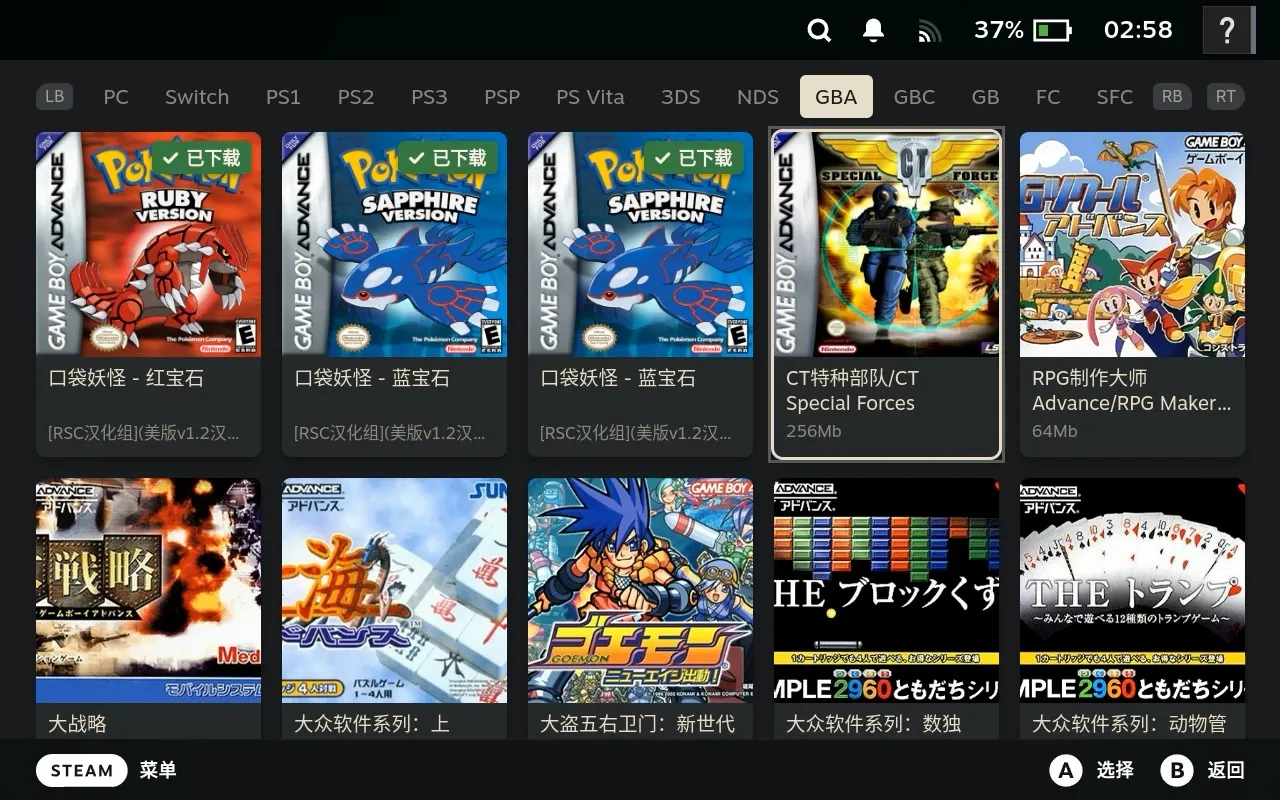
| Button | Action |
|---|---|
| LB / RB | Switch console |
| RT | Jump to: a list of all consoles |
| A | Open a game: size, install location, free space, which cloud drive it comes from, Download |
| X | Hide downloaded / Show downloaded |
| Start | Switch between grid / list |
- Each console tab has a search box at the top that stays pinned there as you scroll down; tap ↑ to go back to the top.
- Games already on the Deck come first, marked Downloaded.
- Games not yet downloaded show which cloud drive they download from; a cloud drive you haven't logged in to is greyed out, and the game details mark it (not logged in).
- When there isn't enough free space, (not enough) appears next to the size.
- Tap Bookmark in the game details and the cover gets an amber corner badge, with bookmarked games sorted first; the last tab, Bookmark, gathers bookmarks from every console.
#Downloading and installing
Tap Download in the game details and follow progress on the panel's Downloads tab. When a download finishes, Coffee installs it automatically:
- Console games: go into the matching console's subfolder of the ROM folder (EmuDeck / ES-DE folder layout). Archives are extracted automatically (RAR5 and multi-part archives supported); zips for cartridge consoles are kept as they are. Archives are deleted after extracting; turn on Keep archives to keep them.
- PC games: extracted to the PC games folder and added to your Steam library automatically (as a non-Steam game, using Proton Experimental, with Steam's artwork). They show up in your library a few seconds later. If the game's program can't be found, tap Pick the program in the game details to choose it yourself; you can also Add to Steam again.
#Deleting a game
For a downloaded game, tap Delete in its details. The confirmation lists the files that will be deleted; for PC games, its Steam shortcut is deleted too.
#How it differs from Tea
| Coffee Decky plugin | Tea (Steam Deck edition) | |
|---|---|---|
| Price | Free | For supporters; see Download |
| Where games come from | A built-in list of free community resources | Files in your own cloud drives and NAS |
| Game library, cover scraping, labels | No | Yes |
| Launching games | Left to EmuDeck / ES-DE / Steam | Straight from Tea |
| Sync, AI features, in-app updates | No | Yes |